Access the Account Register report
- Log in to Advisor360
- Click the Analysis menu tab > select Reports

- Select the Account Register listing under Activity Reports
Set report filters and report grouping
NOTE: By default, the Households/Accounts/Group dropdown is set to All Households. If you are an advisor with proxy access to other advisors, or a staff member with proxy access to multiple advisors, running the report with All Households selected will show results from every advisor.

If you are looking to run the Account Register report on only an individual advisor's Book of Business, a dynamic group filtered on that advisor's IDs should first be created in the A360 Accounts or Households. Reach out to Jon Wiles if any questions on the process.
- Set the desired report filters. Some that may be of interest include:
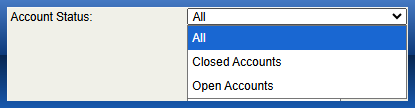
- Account Status - filter for only Open Accounts
- Age Range
- Fee-based Accounts Only
- You can also choose to have the reports grouped by certain fileds.
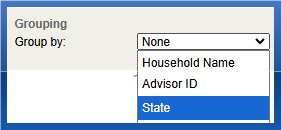
- One example is opting to Group by State. This will allow you to review the state associated with your investment client accounts.
- One example is opting to Group by State. This will allow you to review the state associated with your investment client accounts.
- Review Columns area to make sure appropriate columns are selected.
Run and save the report
- Select Run Report
- You will be taken to a tabular view of report data. You can click through various tabs to review the results live.
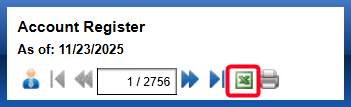
- Select the Excel icon to save the results as a spreadsheet
Was this article helpful?
That’s Great!
Thank you for your feedback
Sorry! We couldn't be helpful
Thank you for your feedback
Feedback sent
We appreciate your effort and will try to fix the article