MassMutual's Global Relay texting solution can be installed on any business Windows/Mac computer that has been encrypted and enrolled in Workspace One*. This will allow you to text compliantly with clients/prospects directly from your desktop. You can also initiate and receive calls using your Global Relay number from your desktop (provided you have a working set of speakers and microphone).
* If you are unsure if your device meets these requirements, please submit a ticket to the Help Desk.
Windows Devices
- Click on the Windows icon on your taskbar

- Search for ‘Workspace ONE’, then click on the Workspace ONE Intelligent Hub application.
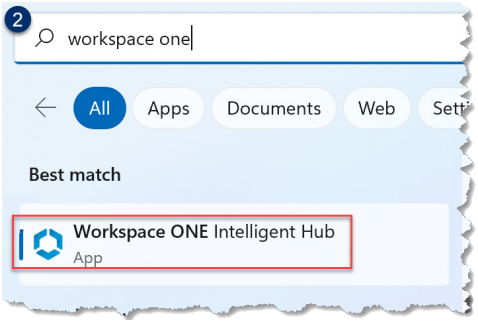
- IMPORTANT NOTE: Installation needs to be performed from the Intelligent Hub desktop app (via the Windows Start Menu), not Workspace One Self-Service Portal or Workspace One Access web apps via Okta.
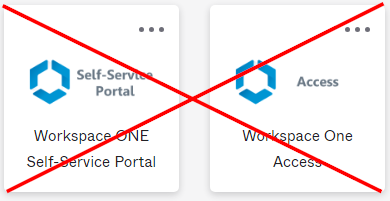
- IMPORTANT NOTE: Installation needs to be performed from the Intelligent Hub desktop app (via the Windows Start Menu), not Workspace One Self-Service Portal or Workspace One Access web apps via Okta.
- If prompted, sign in with your MassMutual credentials (AA/AE# and Okta password)
- From the WS1 Intelligent Hub application, click "Apps" to access the WS1 App Catalog.
- Select the search bar and type "Global Relay" - click on the result that appears.
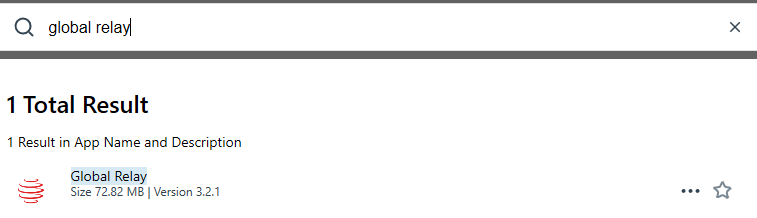
- Select Install.
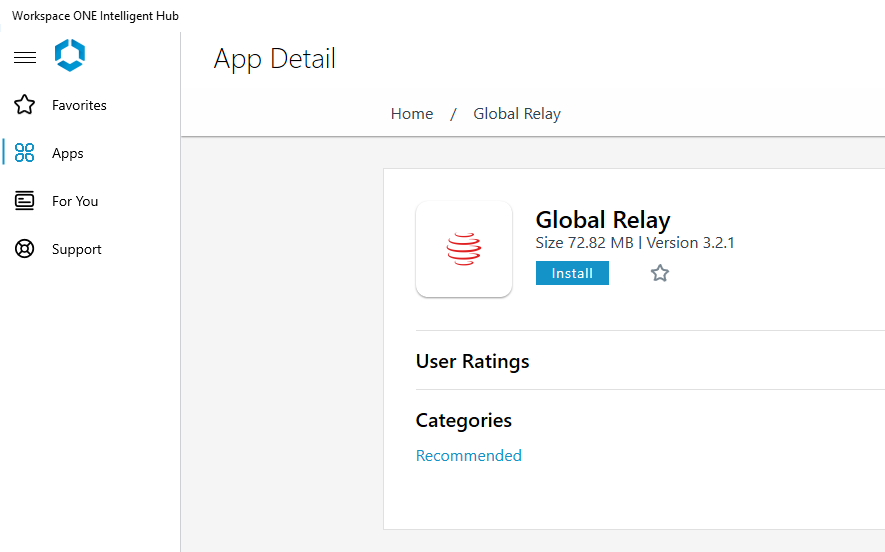
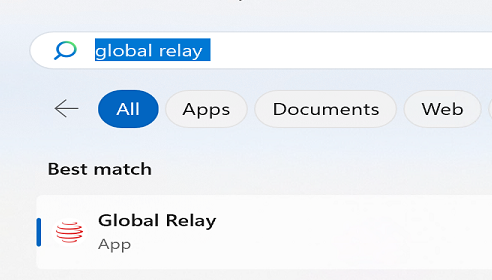
- Once installed, you will receive a notification. The app can then be found by searching for "Global Relay" in the Windows start menu.
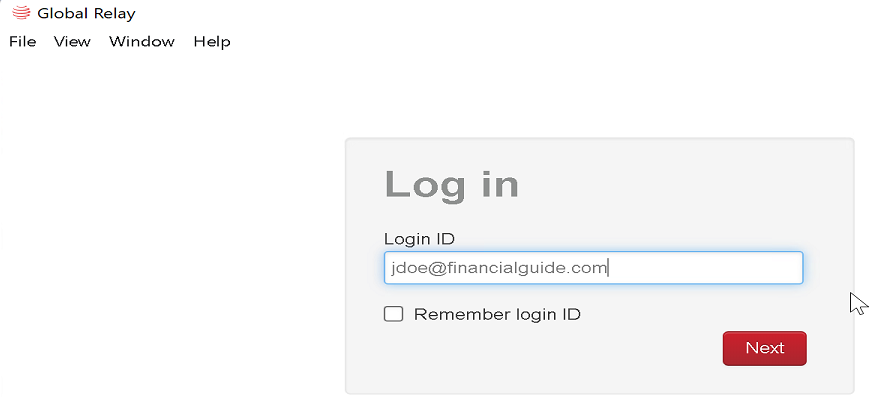
- Sign in to the app with your primary email address (Financialguide or Vanity Domain email). You will then be prompted for your MassMutual credentials (AA/AE# and Okta password).
Mac Devices
Coming soon...
Was this article helpful?
That’s Great!
Thank you for your feedback
Sorry! We couldn't be helpful
Thank you for your feedback
Feedback sent
We appreciate your effort and will try to fix the article