OFFICE 365
Introduction
OneDrive enables you to access, share, and collaborate on all your files from anywhere. OneDrive connects you to all your files in Office 365 so you can share and work together from anywhere while protecting your work.
Use the following links to discover how OneDrive can help you become more productive and organized when accessing and sharing your OneDrive files or folders.
| Access your OneDrive files from your computer, your mobile device, or tablet through OKTA. | |
| Share either individual files, or a whole folder, to provide convenient access. | |
| Managing Access for your Shared Files or Folders | Change the status of those you share files with at a file a nd/or folder level, including edit and view permissions. |
| Restore or view past versions of your working document, as needed. | |
| Enable your files in your OneDrive to always be available to you, even if you’re offline. | |
| Restore files within a 90-day window, before the file is permanently deleted. | |
| Coauthor documents in real-time with your colleagues through OneDrive’s web view. |
Accessing your Files and Folders -
You can access OneDrive on your laptop, tablet, and phone to easily view, edit, and share files from anywhere.
You can access all your content or shared files from Microsoft Teams, SharePoint, or Outlook all from OneDrive. You can also access and share files from File Explorer in Windows or Finder. So from virtually anywhere across multiple platforms (iOS, Android, Windows, and Mac), data travels with you — not your device.
Instructions
Choose one of the following methods to access OneDrive:
| Office 365 chiclet in OKTA | OneDrive for Business chiclet in OKTA |
| Opens OneDrive in the web view | Opens OneDrive in the web view |
| 
|
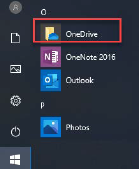
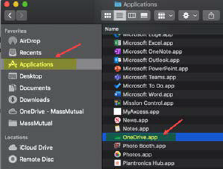
| OneDrive desktop application | OneDrive desktop application |
| PC | Mac |
| 
|
Sharing your Files and/or Folders -
Viewing Shared Files and Folders
When you share files or folders from your OneDrive, it is important to make sure to share these files only with the people that should have access to them. Read below to learn how to view a list of files that were Shared with you, as well as files that were Shared by you.
Shared with you -
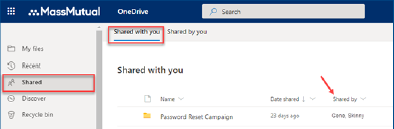
To view a list of all files “shared with you”,
- Select Shared on the left-hand side navigation.
- The default list of Shared with you will appear.
Shared by you -
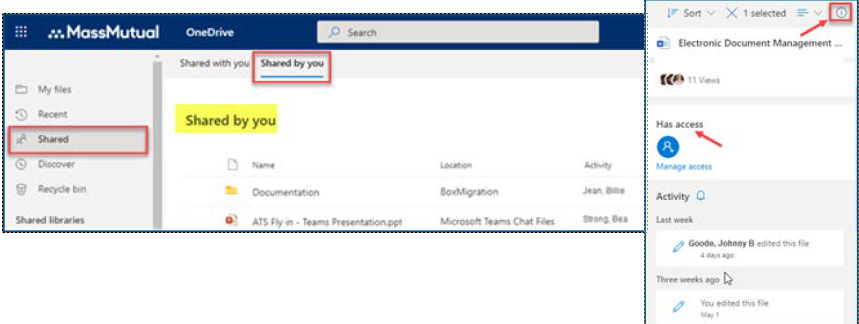
To view a list of all files “shared by you”,
- On the top navigation bar, select Shared by you for a list of documents you have shared with others.
- To see who you shared a file with, select the file or folder for which you want to see the sharing details and then click the Information or “I” icon in the upper-right corner to open the Details pane.
- On the Details pane, there is a Has Access section that will provide icons for each user that has access to the file or folder you are checking. Hover over a user icon to reveal the user’s email address and identity.
Shared Links
OneDrive allows you to create shareable links to share your files or folders with others. All files within OneDrive are private to you, until you decide to share them.
To send a Shared Link,
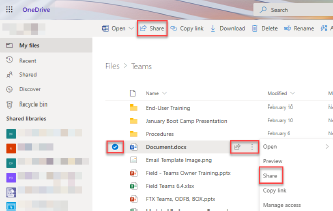
- Select the file or folder to share.
- Select the Share icon or the ellipses and select Share.
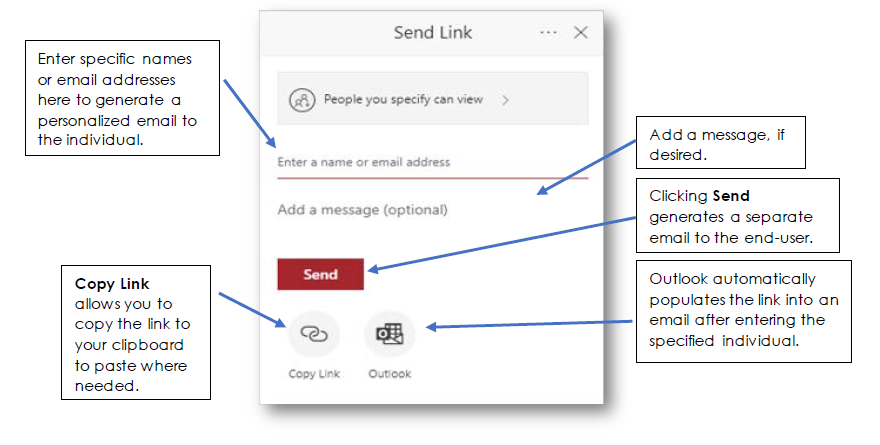
- Complete the following steps in the diagram below to send a Shared Link for your file:
Shared Link Settings
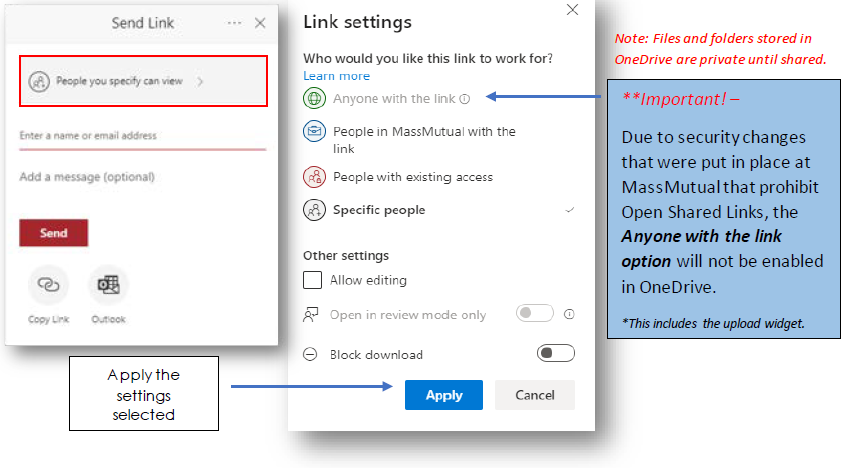
In creating shared links, OneDrive allows you to set the level of access, depending on whom you are looking to share the file or folder with. Link settings allow you to set the level of access, including editing or view only rights.
Read below for instructions on how to change the Link Settings option.
- To change the Link Settings from the Send Link screen, click People you specify can view to display the Link Settings screen.
- People in MassMutual with the link: Creates a link only people within your organization can access – these individuals need to be signed into their Office 365 account to view
- People with existing access: Creates a link for people who already have access to the file or folder – this does not change the permissions on the file
- Specific people: Creates a link that only people who are specified can use to access the file or folder – using this option requires you to enter in the individual name or email address
- Allow editing: Select or clear the checkbox, depending on the access being allowed.
- Upon allowing editing, you set the amount of editing access you want to provide.
- Turning on ‘Open in review mode only’ allows individuals to provide comments and suggested changes, without actually modifying the content of the file.
- Upon allowing editing, you set the amount of editing access you want to provide.
- Block download: When this is selected, people who gain access to the file will not see options to download, print, or copy the file.
Managing Access for your Shared Files or Folders -
How to Manage Access for your Shared Files or Folders
Once you have shared files or folders from your OneDrive account, it is important to know how to manage the access going forward.
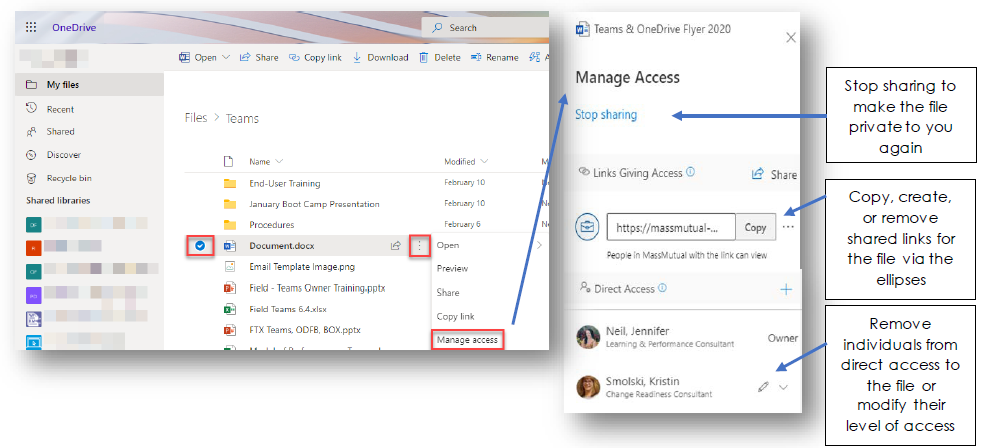
From the Manage Access window, you can complete the following:
- Stop sharing if you no longer want to share this file
- Manage & View any shared links to the file
- You can change the status at a link level, so anyone with access to the file via the shareable link will either have editing rights, or view only rights
- Manage & View individuals who you have shared the file with
- You can change the status of those you have shared the file with by selecting the drop-down next to their names
Client Best Practice – OneDrive does not have an upload widget; however, clients are still able to upload files to your One Drive account. 1. Create a folder for your client 2. Select the folder, then select ‘Share’ 3. From the Send Link screen, select ‘People you specify can view’ 4. From the Link Settings screen, check off ‘Allow Editing’, then select ‘Apply’ 5. Enter in the email address for your client in the email address field 6. Select ‘Send’ or ‘Copy Link’ to copy the link for this file to your clipboard |
Run a Shared Files Report
A shared files report provides information on all shared files, including the user name and email that the file is being shared with, if the file is shared internally or externally, and confirms if any shared links were established. This is an easy way to help manage your shared files.
To run a Shared Files report:
| 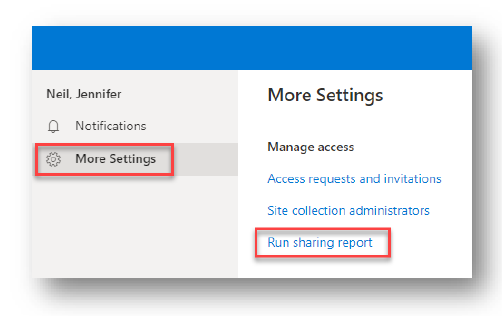 |
You will receive an email notification when your report is ready for viewing. This report will automatically be saved in your OneDrive account.
Version History
View and Restore Previous Versions of a File in OneDrive
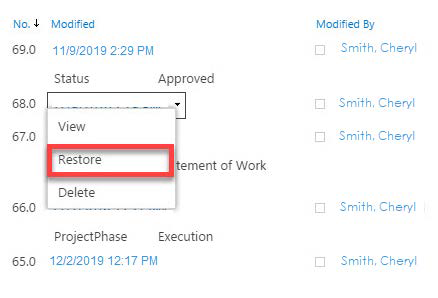
Versioning in OneDrive is enabled by default. Versioning allows you to retrace the history of a file, since the date and time it was first created until present. With versioning, all previous versions will include the tracked changes made to each file version.
Note: In order for versioning to work, documents need to keep the same file name.
How Versioning Works:
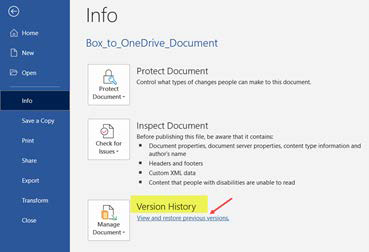
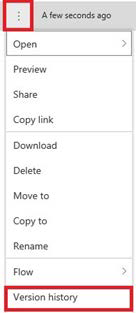
You can view or restore previous versions of documents in OneDrive through Microsoft Office (Word, Excel, PowerPoint) or the Office 365 Portal.
View and Restore OneDrive Files in Microsoft Word
|  |
View and Restore OneDrive Files in Office 365
To restore a previous version of a file:
|  |  |
Understanding OneDrive Sync -
Similar to Box sync, OneDrive allows you to sync and store all your content to your device and access it when you’re not connected. Any changes you make will be synced once you’re online.
Access your OneDrive files and folders from your desktop to view your local files and easily view their sync and sharing status.
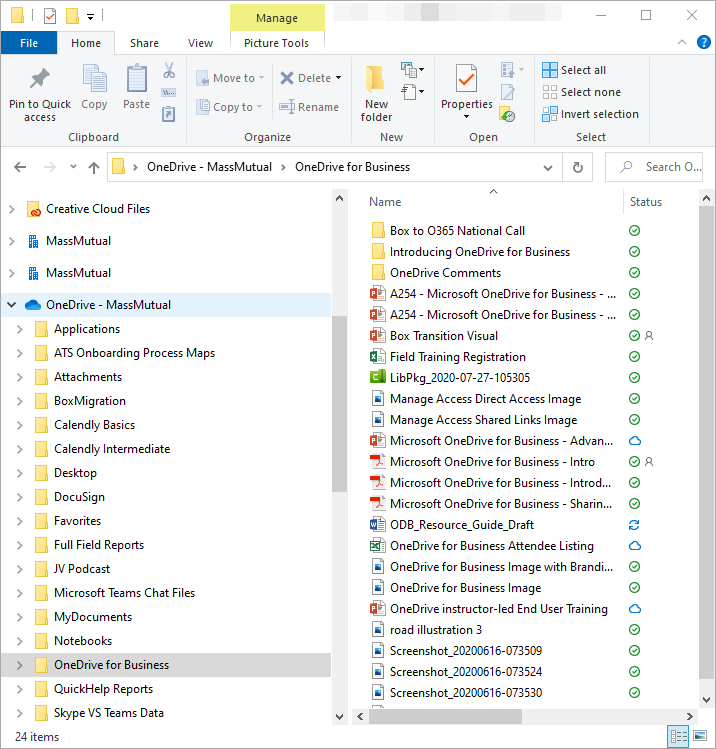 | Under the Status column, you will find the following symbols:
|


Deleting and Restoring Files -
OneDrive maintains deleted files for up to 90 days past their date of deletion. Easily view deleted files in the OneDrive recycle bin and restore any files to the original folder they were previously stored in.
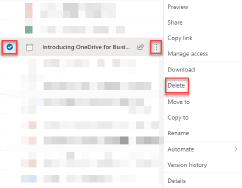
To Delete a File or Folder:
| 1. Select the file or folder you are looking to delete. | ||
| ||
| 3. Select Delete. | ||
 |

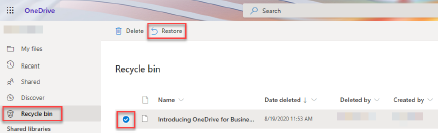
View Your Recycle Bin and Restore a Previously Deleted File:
- Select Recycle Bin on the left-hand navigation rail.
- Select the file or folder you need to restore.
- Select Restore at the top of the page.
Coauthoring with Colleagues –
OneDrive allows you to coauthor documents in real-time with others. More than one individual can edit a document at any given time. Bring collaboration to the next level by editing documents through your Office 365 applications (Word, PowerPoint, Excel).
*Note: you must use the web version to use coauthoring.
In order to allow others to join you in a particular file to edit at the same time, you must first share the file and allow access. Please refer to the Sharing Your Files section to see how to complete this step.
Coauthoring View:
OneDrive makes it easy to know when another individual is in a particular file at the same time you are. All of this information is located in the upper-right hand corner of the screen when in the file you and your colleague(s) are looking to edit.
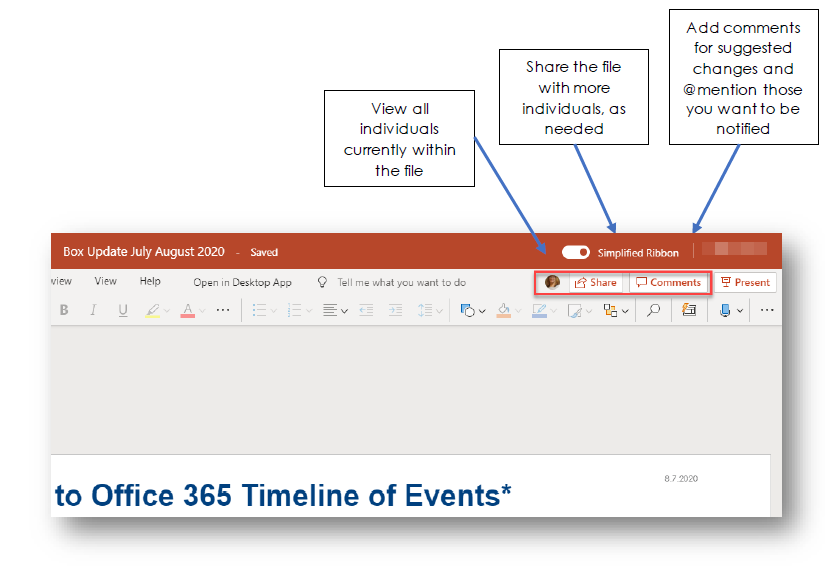
@Mention Individuals in Comments:
When an individual is @mentioned in the comments section for coauthoring, they receive an email notification that they were mentioned in a file comment. This email provides a link that brings that individual into the document and into the conversation.
To @mention someone:
1. Select Comments. 2. Select New to generate a new comment. | 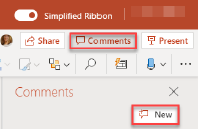 |
3. Type @ with the individual’s name (i.e. @John). When their name appears, select the individual. | 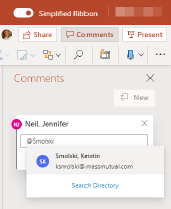 |
4. Complete typing your comment and select Send. | 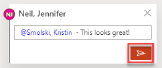 |
Source: Fieldnet/My Practice/Business Technology Tools/OneDrive for Business
Was this article helpful?
That’s Great!
Thank you for your feedback
Sorry! We couldn't be helpful
Thank you for your feedback
Feedback sent
We appreciate your effort and will try to fix the article