A360 Syncing with Outlook can be enabled to allow for syncing of Outlook emails and events to A360, and vice versa.
This can be enabled by navigating to your A360 CRM Admin Settings (via the Admin tab), then accessing the Personal CRM Settings section.
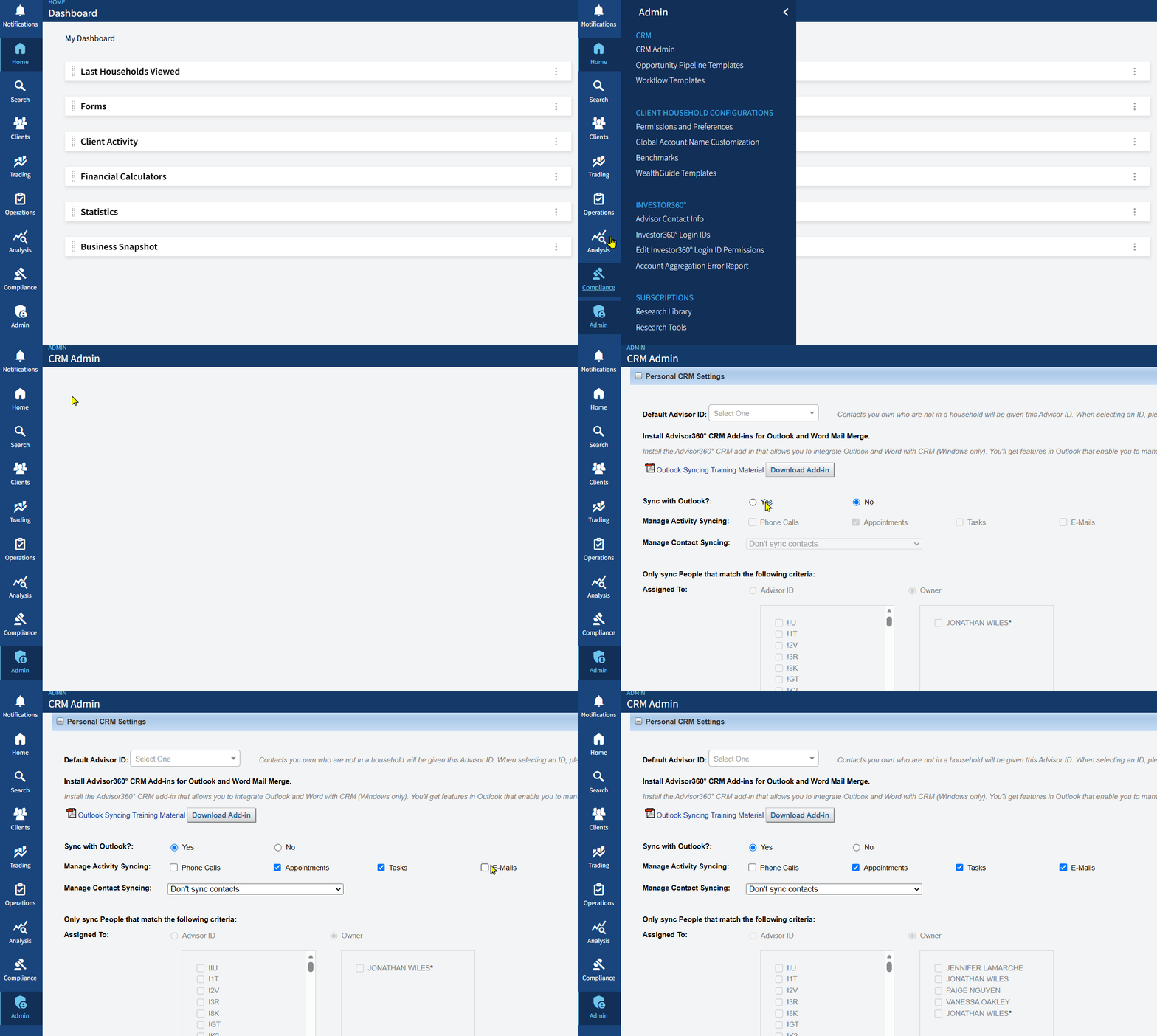
After changes are made, be sure to select Save and Back in the bottom right.
There are two levels of Outlook syncing, outlined below.
Standard Sync - Outlook syncing occurs in the background. Standard syncing works by matching the email address on an Outlook email/event to a record in A360. If no matching record is found, sync does not occur.
Example:
You receive an email from client John Doe's email address JohnDoe123@gmail.com. In your A360 database, you have a household (DOE, JOHN) where the email address JohnDoe123@gmail.com has been added. This email and all subsequent Outlook items will automatically be added to the DOE, JOHN household based on email match, and can be found in the household's Contacts tab > Activities section.
If JohnDoe123@gmail.com isn't added in your A360 database, or John Doe emails you from a different email address not already in the system, the email will not sync.
Add-In Sync - The Outlook add-in downloaded from the CRM Admin page adds a bar to your Outlook layout, where unmatched emails can be manually synced to a household of your choosing, or matched emails' associated households can be changed.
Please note that this add-in is only supported in the classic version of Outlook on Windows devices, and may sometimes cause Outlook performance issues depending on your computer's hardware, so we typically recommend testing Standard Sync above first.
Was this article helpful?
That’s Great!
Thank you for your feedback
Sorry! We couldn't be helpful
Thank you for your feedback
Feedback sent
We appreciate your effort and will try to fix the article