As outlined in this Compass article, all business Windows and MacOS computers must be enrolled in Okta FastPass. Starting Tuesday, August 12, devices without FastPass will be blocked from accessing Compass until setup is complete.
This requirement applies to each individual device. For example, if your Dell desktop is enrolled but you sign in from an old MacBook, you’ll be prompted to set up FastPass on that MacBook as well.
✅ Check for Okta On Your Computer
- Open the Windows Start Menu Search bar or your Mac Spotlight Search
- Type Okta Verify.
- Click the Okta Verify app search result.
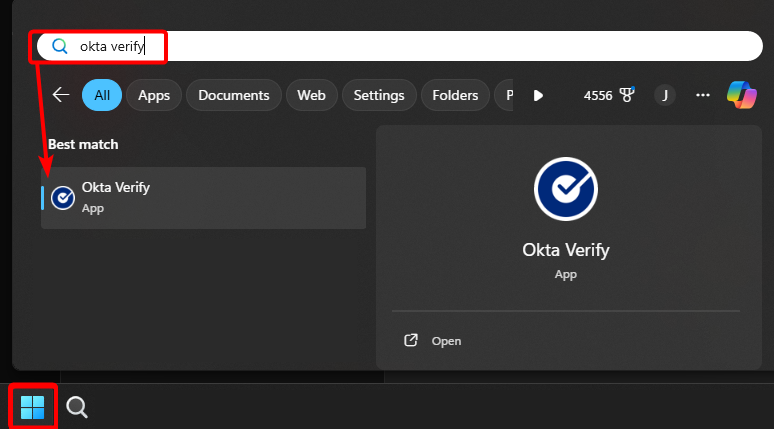
If you don’t see Okta Verify listed, refer to the final section below.
✅ Confirm Okta FastPass Enrollment
- If your Okta Verify desktop app shows your name and AA/AE ID, that specific computer is enrolled and ready for August 12.
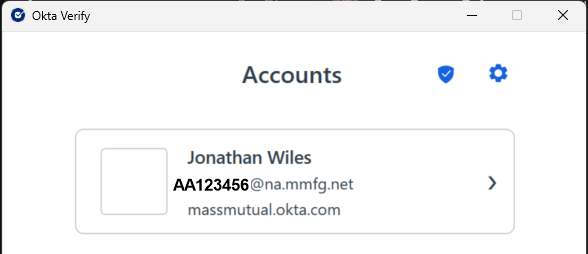
- Repeat the process above for all computers used for business.
❌ If You Can’t Find Okta Verify or Still Need to Enroll
- Access the Okta Verify Desktop Enrollment page here and sign in
- First try selecting Open Okta Verify. If the Okta Verify app opens, please see the enrollment guide below to sign in.
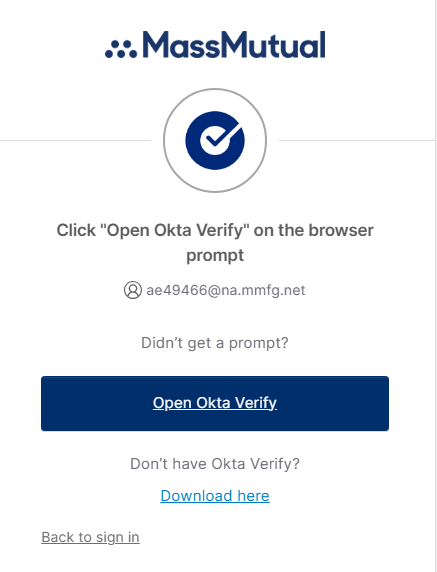
- If you receive the following message, please click away and choose Download here and install Okta Verify.
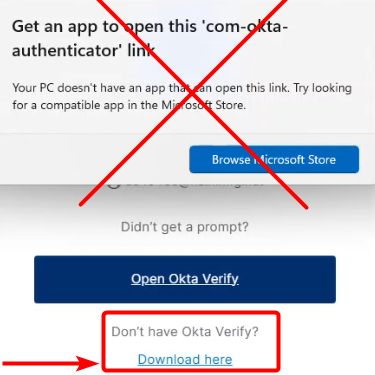
- If you receive the following message, please click away and choose Download here and install Okta Verify.
- Follow the enrollment guides here:
Was this article helpful?
That’s Great!
Thank you for your feedback
Sorry! We couldn't be helpful
Thank you for your feedback
Feedback sent
We appreciate your effort and will try to fix the article