When you purchase a new mobile device, your Okta Verify account information may not transfer from your old device.
If you are able to log in to Compass on a computer or another mobile device with active Okta Verify, please see steps below:
Part 1 - on your current device
- Access your MassMutual Okta Settings page via this link: https://massmutual.okta.com/enduser/settings
- Locate the Security Methods section > Okta Verify subsection and click Set up another
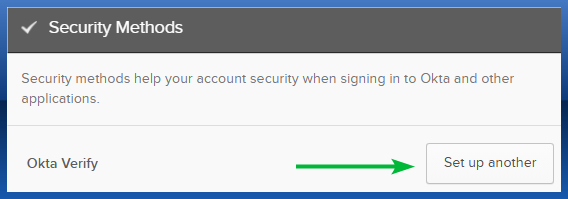
- Verify your identity with your password and existing Okta Verify device.
- After verifying, select Set up below Okta Verify
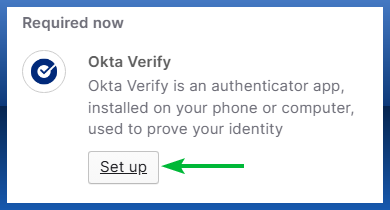
- When you arrive at the QR code page, leave this screen open. Proceed with Part 2 below on your new device.
Part 2 - on your new device
- On your new mobile device, download Okta Verify from the Apple App Store/Android Play Store.
- Select the Add account button (or + button at the top right)
- Select Organization on the Choose Account Type page.
- Select Skip when prompted to "Add account from another device?"
- Select Yes, ready to scan on the QR code screen.
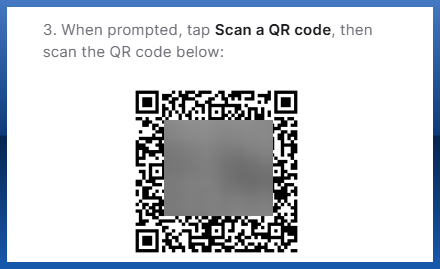
- If prompted, allow camera access. Then, scan the QR from Part 1 above.
- If prompted to allow Face ID/Touch ID, skip this prompt.
- The QR code page in Part 1 will update to confirm that the enrollment is completed. The Okta Verify app on your mobile device will now show a rotating code that can be used for future Okta Verify verifications.
Was this article helpful?
That’s Great!
Thank you for your feedback
Sorry! We couldn't be helpful
Thank you for your feedback
Feedback sent
We appreciate your effort and will try to fix the article