MassMutual is moving to Okta Verify on mobile and desktop as the sole login authentication method. All business partners are asked to enroll in Okta Verify by May 23, 2025.
The steps below outline the process to enroll in the Okta Verify mobile app. We recommending the first section on your Mac/PC, and the second on your mobile device.
Part 1 - PC or Mac Device:
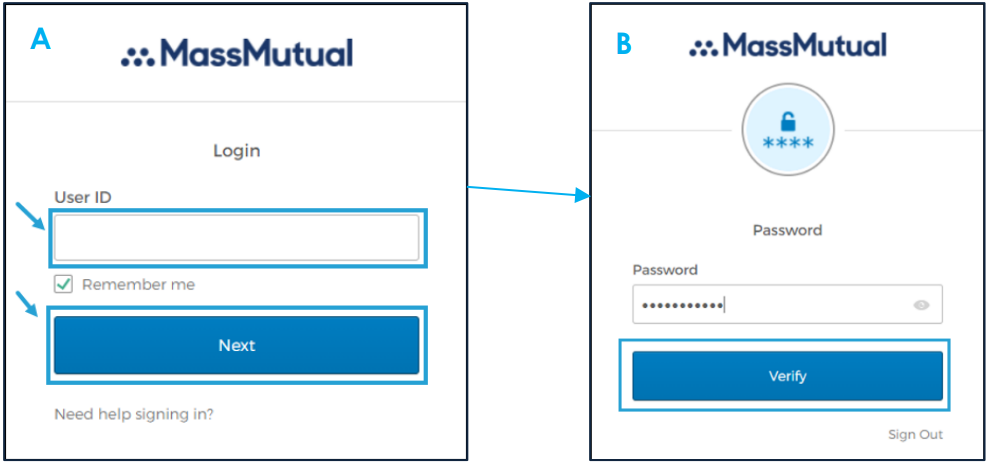
- Using your PC or Mac device, login to Compass.
- Enter your User ID, check the Remember me box, and click Next.
- Enter your password and click Verify.
- Complete your two-factor authentication (2FA) as you normally would. Please note that if you are successfully able to use Okta Verify or Okta FastPass here, then that method is already set up.
- Once logged in, access the Okta Settings page via this link: Okta User Settings
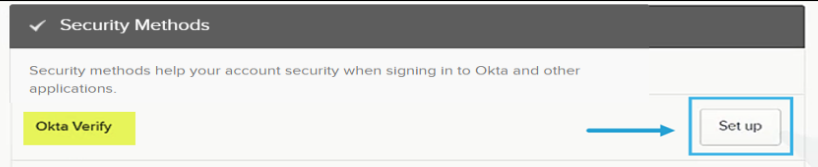
- Scroll down to the Security Methods section. Select Set up next to Okta Verify.
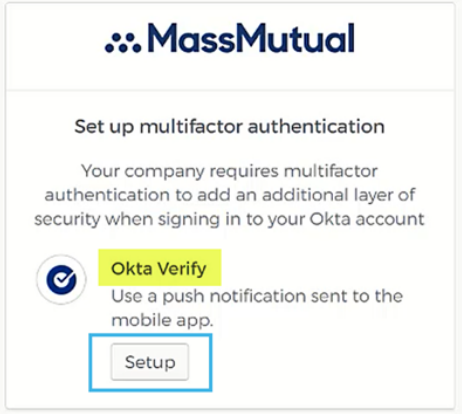
(Please note: you may be prompted to reauthenticate with your existing authentication method several times) - The Set up multifactor authentication screen will appear. Click Setup.
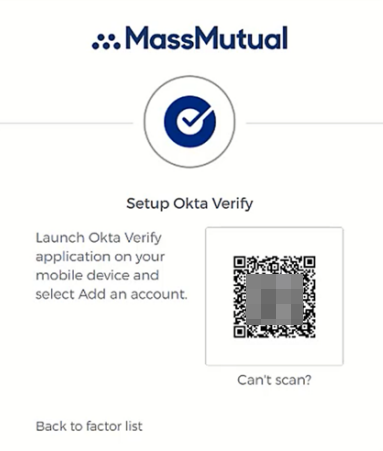
- Select your Device Type and click next. This will display the QR code needed for part 2 below. Please leave this screen open on your computer for the upcoming steps.
Part 2 - Mobile Device:
- Download the Okta Verify app from the Workspace One app catalog or your device's app store.
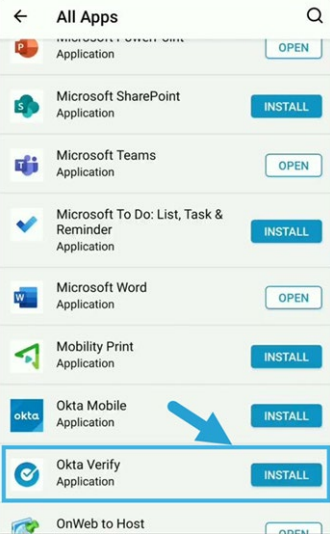
- Once the download is complete, open the Okta Verify app on your mobile device.
- Select the Add Account button on the Welcome screen.
- On the Choose Account Type screen, select Organization.
- If prompted to add from another device, select Skip
- On the Verify to Continue screen, click Scan a QR Code to pair your device.
- If prompted, allow Camera Access. Once the camera screen appears, point the camera at the QR code on your computer screen to scan.
- Once successfully linked, you will receive a confirmation message on both your mobile device and computer.
Was this article helpful?
That’s Great!
Thank you for your feedback
Sorry! We couldn't be helpful
Thank you for your feedback
Feedback sent
We appreciate your effort and will try to fix the article