TABLE OF CONTENTS
- ️Classic Outlook (desktop)
- ️New Outlook / Web Outlook (desktop)
- iPhone/iPad Mail app (mobile)
- Outlook app (mobile)
▶️Classic Outlook (desktop)
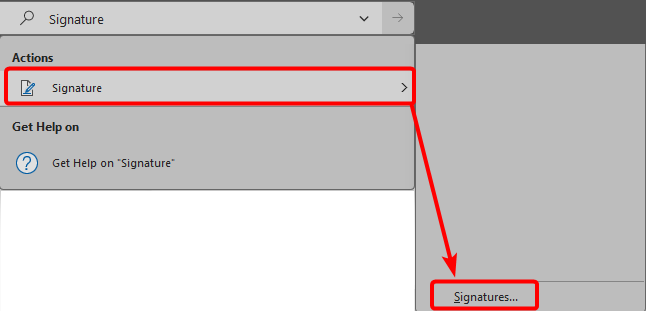
- Click on the Outlook search bar and search for Signature

- Hover over the Signature result in the Actions section
- Click on the Signatures... option at the bottom of the list
- Select the signature you'd like to modify and make changes in the Edit Signature box.
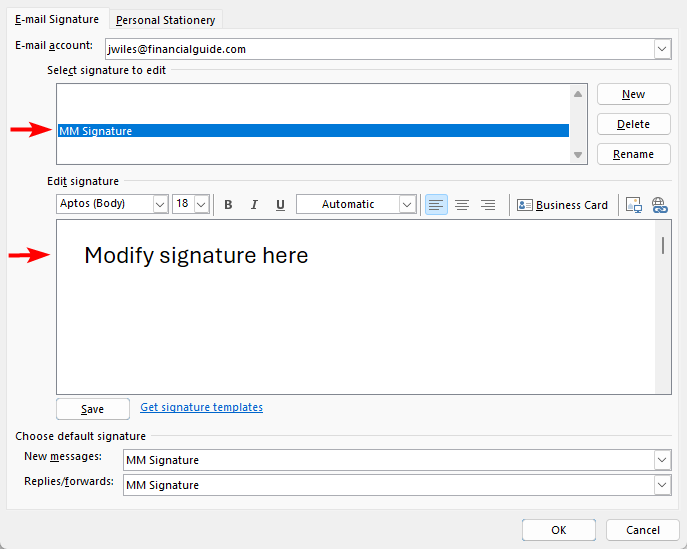
- Once complete, select OK.
▶️New Outlook / Web Outlook (desktop)
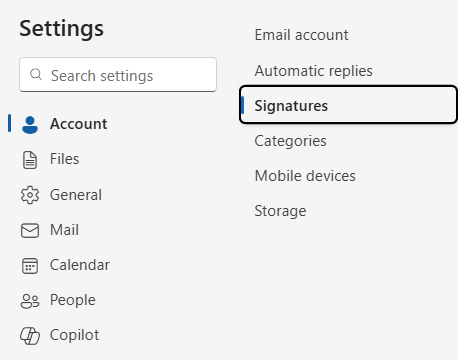
- Click on the Settings gear icon

- Navigate to the Account section and click on Signatures
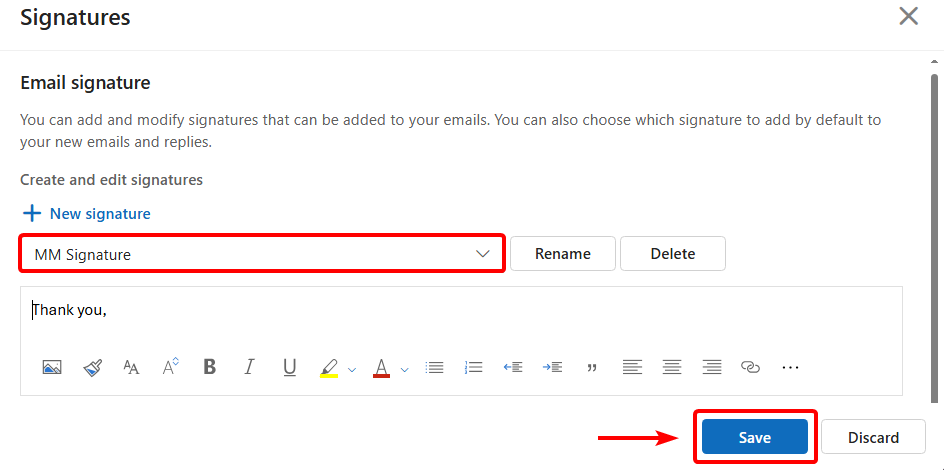
- Select the signature you'd like to modify from the drop-down.
- Make desired changes and select the Save button
▶️ iPhone/iPad Mail app (mobile)
Go to Settings
 > Apps > Mail.
Tap Signature (below Composing).
Tap the text field, then edit your signature.
If you have more than one email account, tap Per Account to set a different signature for each account.
▶️ Outlook app (mobile)
Was this article helpful?
That’s Great!
Thank you for your feedback
Sorry! We couldn't be helpful
Thank you for your feedback
Feedback sent
We appreciate your effort and will try to fix the article