The steps below will outline steps to share your Outlook mail folders with other users. One common use case for this would be coverage of your email when you are out of office.
Note that the steps below will not grant "Send on Behalf Of" access. To do this, the user will also need to be added as a delegate via the Outlook File menu.
Outlook Desktop App (Windows)
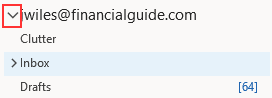
- Navigate to your Outlook and ensure your sidebar is expanded so that you can see folders you wish to share. Expand subfolders below your email address if necessary.
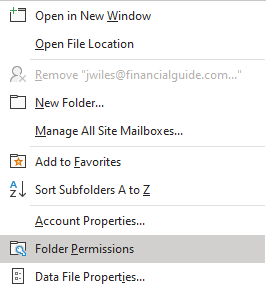
- Right-click on your email address (mailbox name) in the sidebar, and choose Folder Permissions.

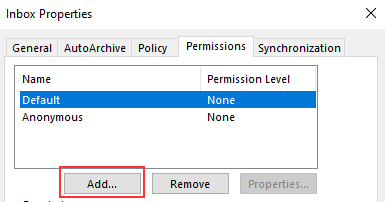
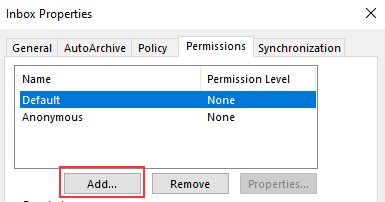
- From the Permissions tab, select Add...
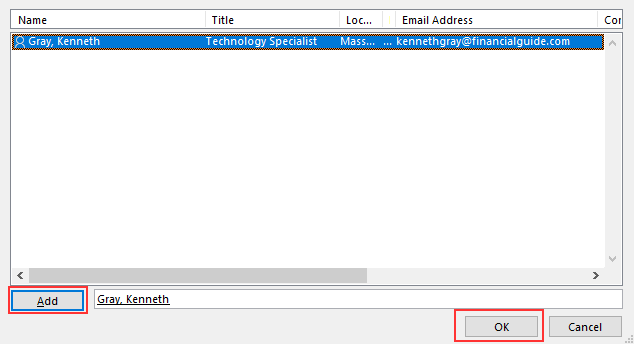
- Select the appropriate user(s) from the address book, click Add and then choose OK
- You will be returned to the folder properties screen. Click on the appropriate user's name to select them, then select the permission level you would like them to have, select select Apply/OK.
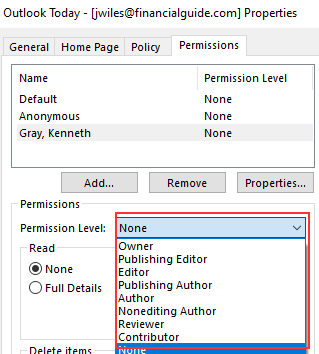
Permission Level
Definition
Owner:
Allows full rights to the mailbox’s (Calendar or Folder) , including assigning permissions; it is recommended not to assign this role to anyone
Publishing Editor:
Create, read, edit, and delete all items; create subfolders
Editor:
Create, read, edit, and delete all items
Publishing Author:
Create and read items; create subfolders; edit and delete items created by the user.
Author:
Create and read items; edit and delete items they’ve created.
Nonediting Author:
Create and read items; delete items created by the user.
Reviewer:
Read items.
Contributor:
Create items.
Free/Busy time, subject, location:
View the time, subject, and location of the appointment or meeting on your calendar.
Free/Busy time:
Shows only as Free or Busy on your calendar. No details are provided.
None:
No permissions are set for the selected user on the specified calendar or folder..
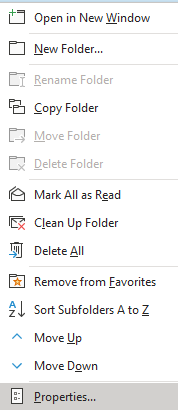
Back in your mailbox sidebar, right-click on the folders you would like them to have access to (e.g. Inbox, Sent Items, other important subfolders), select Properties and repeat steps 3-5 to share each folder.

IMPORTANT NOTE: this will need to be done with all folders the other person needs access to. There is no way to grant blanket access to all folders in your mailbox.
Once the folders are shared, please have the recipient follow the steps outlined here to access your mail folders: Accessing another user's email mailbox in Outlook (desktop)
Was this article helpful?
That’s Great!
Thank you for your feedback
Sorry! We couldn't be helpful
Thank you for your feedback
Feedback sent
We appreciate your effort and will try to fix the article