PLEASE NOTE: The individual whose mailbox you would like to access must first set proper permissions from their Outlook in order for you to see their mail folders.
Required: Sharing Outlook Mail Folders with others
Optional: Grant Delegate Access to allow send-on-behalf rights
The steps below outline the steps to add another user's mailbox to your own Outlook. Their mailbox will appear separately in your Outlook sidebar below your own mailbox.
- In Outlook, go to File > Account Settings > Account Name & Sync Settings
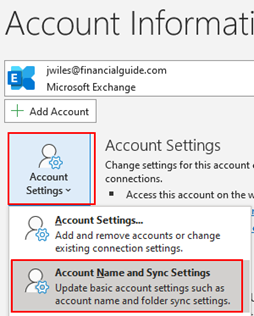
- Choose More Settings…
- In the Advanced tab, select Add… and enter the email you will be accessing (e.g. JohnDoe@financialguide.com) in the “Add Mailbox” box
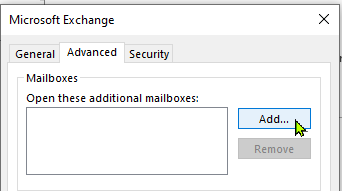
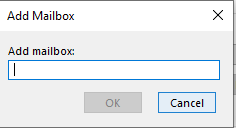
- Choose OK, then Next and accept any remaining prompts.
- Navigate back to your Outlook Mail tab and locate their name/email in the sidebar. If minimized, you can expand their mailbox with the > icon to view available folders.
Was this article helpful?
That’s Great!
Thank you for your feedback
Sorry! We couldn't be helpful
Thank you for your feedback
Feedback sent
We appreciate your effort and will try to fix the article