If you are receiving a blank screen or error message when accessing certain MassMutual websites, or certain sections in Advisor360, you may need to clear cache & cookies in your browser. See steps below for Chrome and Edge. Please note that clearing the cache and cookies will sign you out of any websites with active logins and some settings from those sites may need to be reset. | Jump to: |
Google Chrome
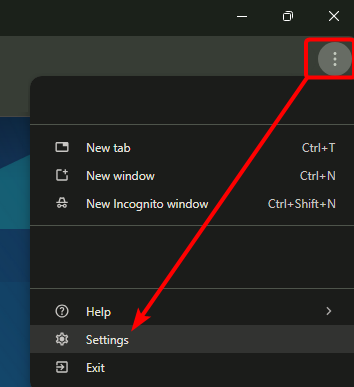
- Select the three dots in the top right and choose Settings
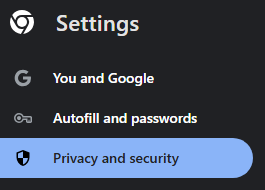
- Select Privacy and security
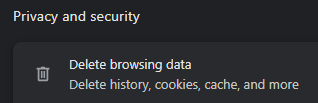
- Select Delete browsing data
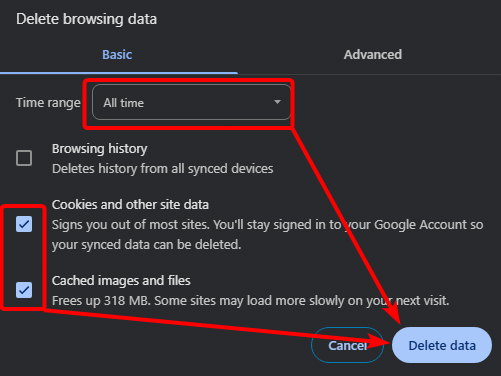
- In the box that appears, ensure Cookies and other site data and Cached images and files are checked under the Basic tab, and All time is selected for the Time range. Choose Delete data.
- Close and reopen Chrome, and test to confirm A360/affected site is working properly.
Microsoft Edge
- Select the three dots in the top right and choose Settings
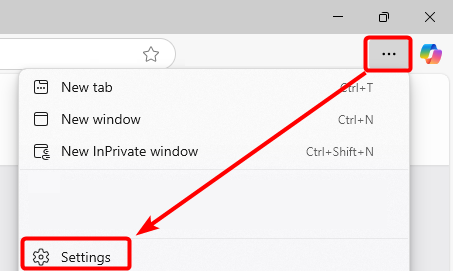
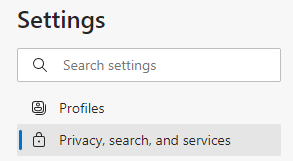
- Select Privacy, search, and services
- Select Clear browsing data
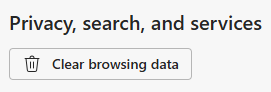
- Select Choose what to clear

- Ensure Cookies and other site data and Cached images and files are selected, and All time is selected for the Time range. Choose Clear now.
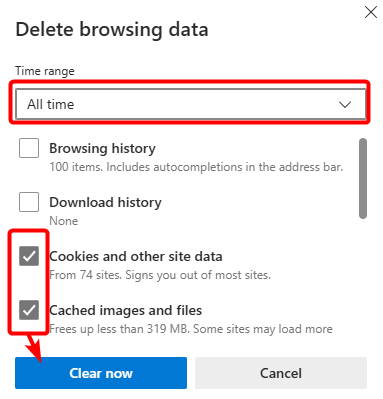
- Close and reopen Edge, and test to confirm A360/affected site is working properly.
Was this article helpful?
That’s Great!
Thank you for your feedback
Sorry! We couldn't be helpful
Thank you for your feedback
Feedback sent
We appreciate your effort and will try to fix the article