The steps below outline the steps to sign in to Zoom on your Windows/Mac desktop or laptop:
- Open the Zoom app on your respective platform
- Windows: search for Zoom Workplace in the Windows Start Menu
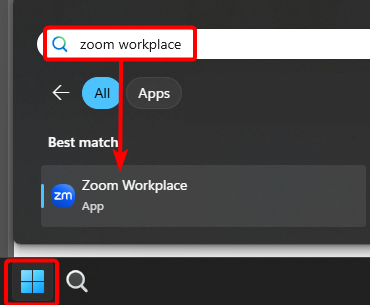
- Mac: Locate the Zoom app in your Finder's Apps section or search for Zoom in the Spotlight Search (magnifying glass top-right)
- If you are unable to locate the app, it can be downloaded from the Zoom website
- Windows: search for Zoom Workplace in the Windows Start Menu
- On the sign-in screen for the Zoom app, select the SSO / Sign in with SSO option.
- Option 1:
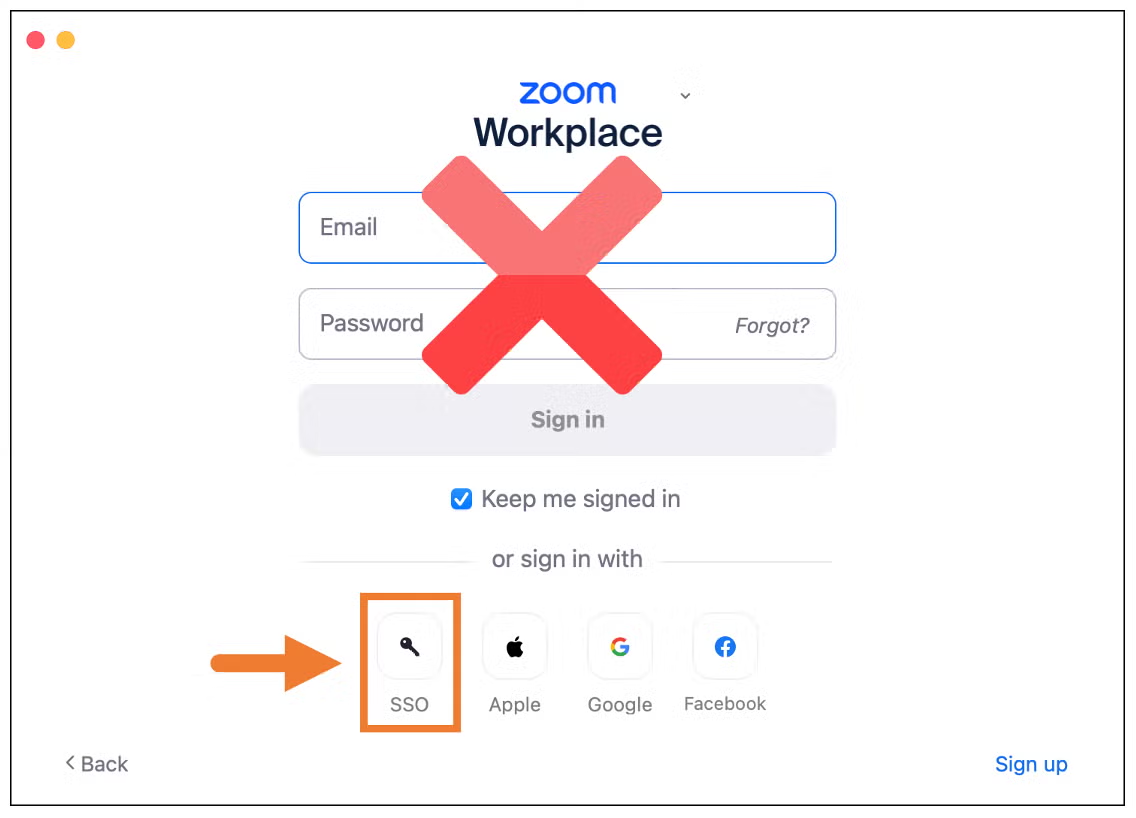
- Option 2
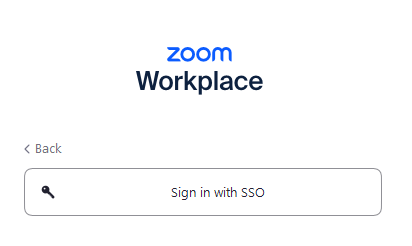
- Option 1:
- In the company domain box, enter financialguide, then select Continue.
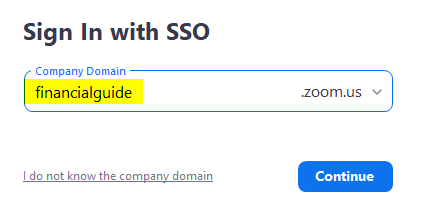
- You will then be prompted for your MassMutual user ID (AA or AE#) and Okta password.
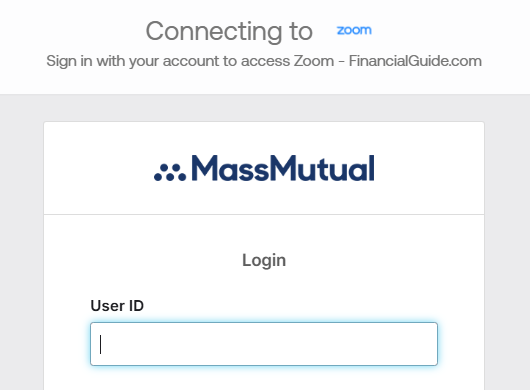
- After verifying your MassMutual credentials, you will be returned to the Zoom app to complete the sign-in process.
Was this article helpful?
That’s Great!
Thank you for your feedback
Sorry! We couldn't be helpful
Thank you for your feedback
Feedback sent
We appreciate your effort and will try to fix the article