Please note that Zoom Phone is currently being rolled out to those currently on the BroadSoft Office Phone system. If you are currently using RingCentral or Global Relay as your primary business calling number, this section will not apply.
Zoom Phone is launching Tuesday, April 22 at 8:30-9:00AM PST for those currently on the BroadSoft phone system. At this time, your existing Polycom phone (VVX 410 and VVX 411) will no longer function. Calls will instead be received on your Zoom desktop and Zoom mobile app.
To ensure you will receive these calls, you will first want to ensure you are signed into the Zoom app:
Opening and signing into the Zoom Workplace app
Zoom Workplace will be the application used to make and receive calls, review call history, check your voicemail, and act on behalf of others if given delegate access. See links below to sign
- Zoom Workplace app on your Windows PC
- Zoom Workplace app on your mobile phone
Zoom Workplace app vs. Zoom Web Portal
It is important to understand the difference between the Zoom Workplace application and the Zoom Web Portal:
Zoom Workplace App
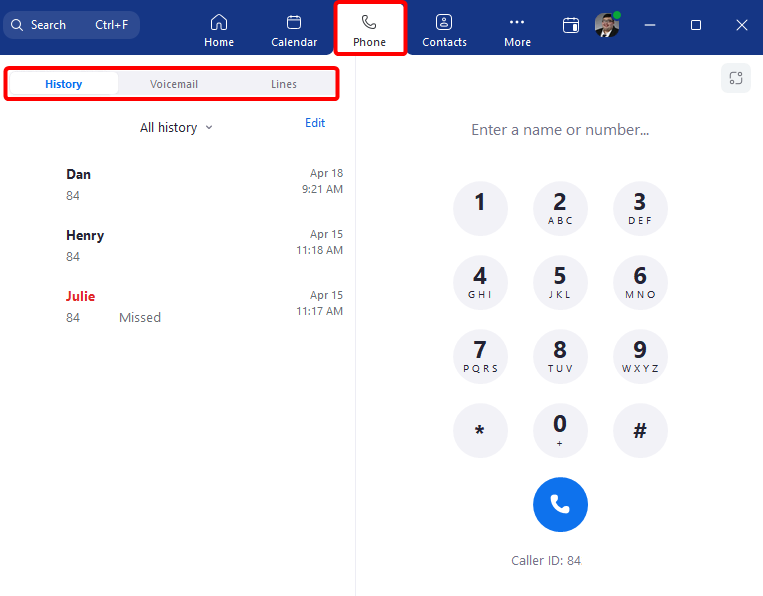
The Zoom Workplace app refers to the app on your computer or mobile device.The following functions are primarily performed through the Zoom Workplace App:
- Making and receiving calls
- Dial a phone number using the dialpad
- Search by name to search your contacts and the MassMutual internal directory
- Incoming calls will ring using your device's speakers and pop up on your screen
- Access your voicemail
- Manage other lines you are granted access to (e.g. a Sales Assistant can opt in to receive calls coming in to an Advisor's line once set up)
Zoom Workplace App settings
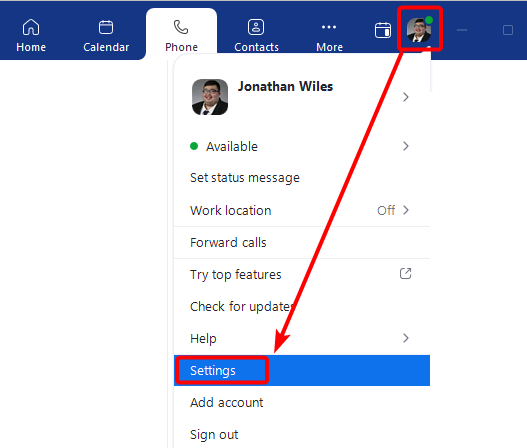
Access the Zoom Workplace App settings by clicking your profile picture/initials in the top-right and choosing Settings.
We recommend reviewing the following settings:
General tab:
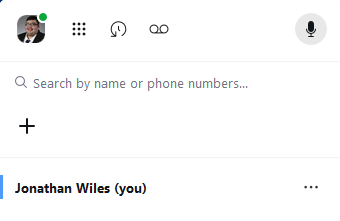
- Enable or disable the Zoom Phone Assistant. When enabled, a small window will be displayed where you can quickly access your dialpad, call history and voicemail.
Audio tab:
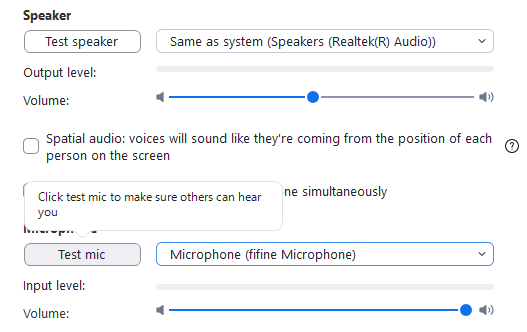
- Select your default speaker and microphone devices
- Use Test speaker and Test mic to confirm that your audio devices are working
- Set preferred ringtone and ringtone volume
Phone tab:
- Set whether incoming call alerts
- The majority of Phone settings are handled in the web portal (see here).
Profile tab:
- Select Edit my profile to edit your Zoom profile on the web portal
Additional settings:
Additional settings are available when clicking your profile picture/initials, such as:
- Set your status
- Setting your status to Do Not Disturb will route all incoming calls according to your call handling settings in the web portal
- Type a status message visible to others on the Zoom Phone system
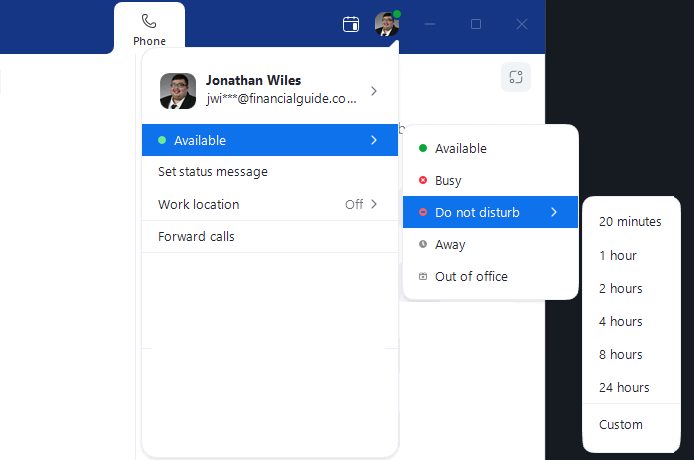
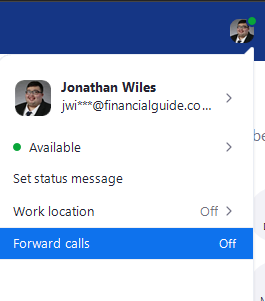
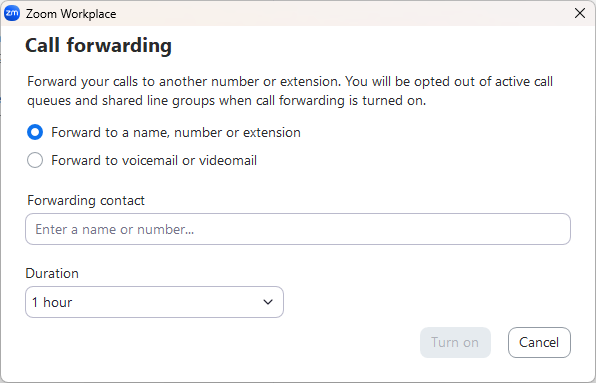
- Set up Call Forwarding to another number, or redirect calls straight to voicemail
Zoom Web Portal
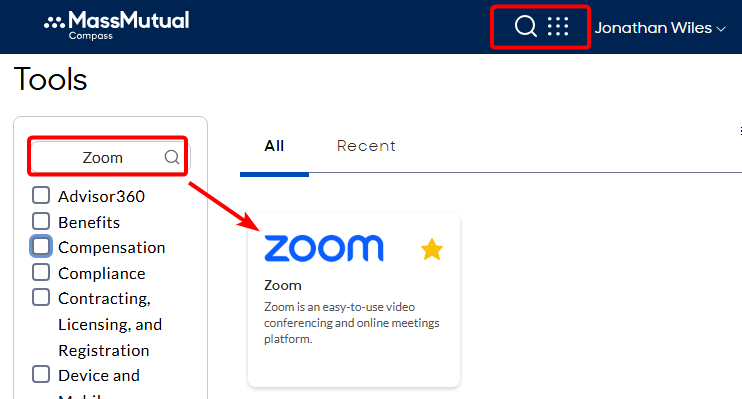
Accessed from the Tool Selector in Compass.
Zoom Web Portal settings
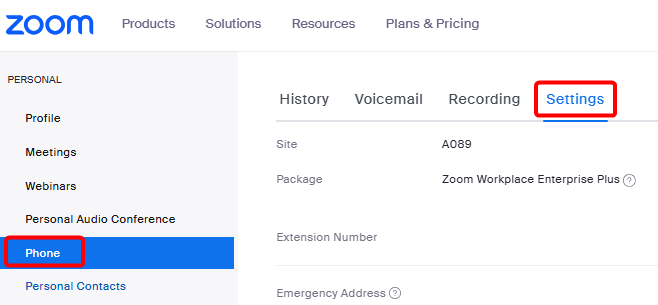
Inside the Zoom Web Portal, you can make changes to important settings from the Phone section > Settings tab
Outbound Caller ID
Call Handling
- Set your preferred business hours for receiving calls. Calls received outside of your set business hours will default to the chosen "Call not answered" option
- Call Handling
- Call Handling - Determine whether incoming calls should ring on your Zoom desktop app, mobile app, or both.
- Call Handling Ring Mode - If multiple devices are chosen, you can choose whether they will ring simultaneously, or one after the other.
- Ringing Duration - how long each device will ring before proceeding to the next or going to "call not answered"
- When I'm busy on another call - determine how incoming calls are handled when you are on another call
- When a call is not answered - determines whether unanswered callers are prompted to leave a voicemail message, forwarded to another number, etc.
- Greeting
Was this article helpful?
That’s Great!
Thank you for your feedback
Sorry! We couldn't be helpful
Thank you for your feedback
Feedback sent
We appreciate your effort and will try to fix the article